
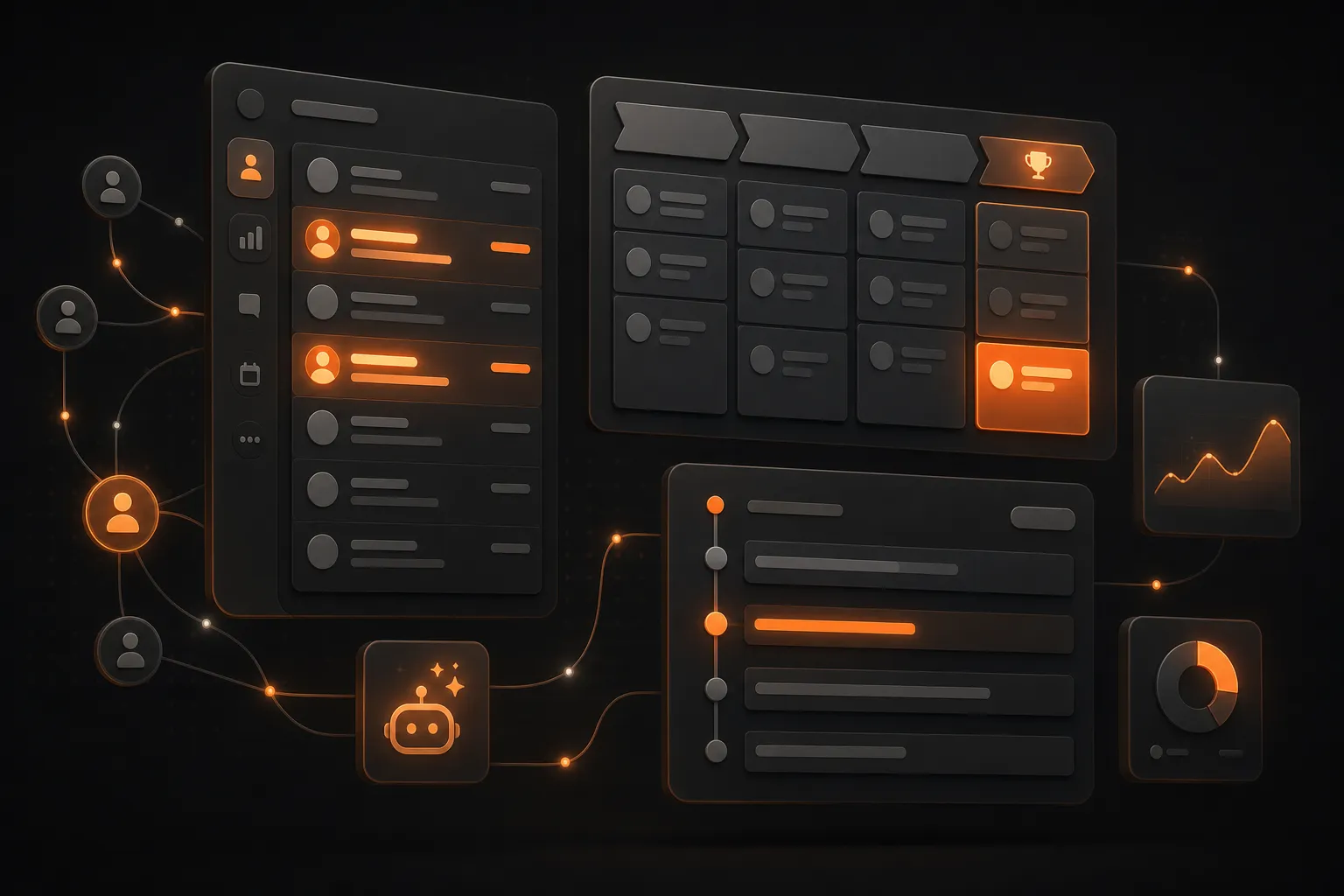
How to build a CRM with AI (the parts that actually matter, and the parts that don't)
A practical guide to building a real CRM with AI tools — the data model, the three essential features, and the 80% of CRM features you can skip. Code patterns included, no fake build log.
 Bryan Hale
 The honest version of “build a CRM with AI” is that you can ship a real one in 1-2 days, and the 1-2 day version will be useful to a small team. You don’t need Salesforce. You don’t need HubSpot. You don’t need a $300/month tool with 200 features you’ll never use. You need contacts, deals, an activity log, and the ability to find things. Everything else is decoration.
This article is the pattern, not the prompt magic. I’ll show you the data model, the three features that actually matter, the eight features that look essential but aren’t, and the place where vibe-coded CRMs always break. Whether your code came from Blink, Cursor, Bolt, or your own typing, the architecture is the same.
The data model (this is the most important part)
A CRM is fundamentally a database with three linked tables and a UI. Get the data model right and the UI builds itself. Get it wrong and you’ll rebuild the whole thing in six months.
The three core tables:
- Contacts — a person. Fields: name, email, phone, company (linked to Companies), title, source (where you found them), tags, created_at, updated_at
- Companies — an organization. Fields: name, domain, industry, size, notes, created_at, updated_at
- Deals — a sales opportunity. Fields: name, value, stage (Prospecting, Qualified, Proposal, Negotiation, Won, Lost), expected_close_date, contact_id (linked to Contacts), company_id (linked to Companies), owner_id (linked to Users), created_at, updated_at
The two activity tables (often forgotten, always needed):
- Activities — anything that happened with a contact. Fields: type (email, call, meeting, note), subject, body, contact_id, deal_id (optional), user_id, occurred_at
- Notes — free-form text attached to a contact, company, or deal. Often a subset of Activities with type=note.
The relationships: every Contact belongs to zero or one Company. Every Deal belongs to one Contact and one Company. Every Activity and Note belongs to one Contact (and optionally one Deal).
That’s the whole data model. The rest of the CRM is just a UI on top of these tables and a way to create and view records.
The three features that actually matter
When you strip out everything else, a CRM does three things well. Build these first, in this order.
Feature 1: View a contact, see everything about them
The single most-used screen in any CRM. Open a contact, see their name, email, company, all the activities you’ve had with them (emails, calls, meetings), all the deals they’re attached to, all the notes you’ve written about them. One page, all the context.
How to build it (with AI):
Build a contact detail page at /contacts/[id]. It should show:
- The contact's name, email, phone, company (linked), title
- A timeline of all activities (emails, calls, meetings, notes)
  in reverse chronological order
- All deals attached to this contact, with current stage and value
- A "Log activity" button that opens a form to add a new activity
- An "Edit" button that opens the contact in an edit form
Use the existing contacts, companies, deals, and activities
tables. Use the existing auth system to scope activities to
the current user's team.
That’s the prompt. The AI will produce a working page in 2-5 iterations. The part that takes the longest is the activity timeline, because it needs to merge multiple tables (emails, calls, meetings) into a single sorted list. If the AI gets it wrong on the first pass, the specific instruction is: “the activity timeline should merge emails, calls, meetings, and notes into one list, sorted by occurred_at descending. Each item should show the type icon, subject, and a one-line summary.”
Feature 2: Move deals through a pipeline
The second most-used screen. A Kanban-style board showing all your open deals, grouped by stage. Drag a deal from “Qualified” to “Proposal,” the stage updates, an activity gets logged automatically.
How to build it (with AI):
Build a pipeline view at /deals. It should be a Kanban board
with these columns (in this order): Prospecting, Qualified,
Proposal, Negotiation, Won, Lost. Each card should show the
deal name, value, and the contact's name. Drag a card from
one column to another to change the stage. When the stage
changes, log an activity with type='stage_change' that
includes the old stage, new stage, and the user who moved it.
The drag-and-drop is the part that often breaks. The AI will produce something that looks right but has a subtle bug — usually, the drag works on the UI but the database update is racy (two users drag at the same time, one’s update is lost). The fix is to wrap the stage update in a database transaction and to use optimistic UI updates: show the move immediately, but if the server rejects, snap it back.
Feature 3: Add a contact quickly
The third most-used action. You’re at a conference, someone gives you a business card, you need them in the CRM before the next conversation. The “add contact” action needs to be one click from the home screen, three fields minimum (name, email, company), save in under 5 seconds.
How to build it (with AI):
Add a global "+ New" button in the top nav. Clicking it opens
a quick-add form with these fields: name (required), email
(required), company (required, with typeahead), title (optional).
Submit creates the contact and closes the form. If email
already exists, show an error and link to the existing contact.
The typeahead on “company” is the part that matters. If the user has to type a company name from scratch, the contact gets attached to a typo’d company. The fix: when the user types in the company field, search existing companies in the background and show a dropdown of matches. If they pick one, link. If they don’t, create a new one with the exact name they typed.
The eight features that look essential but aren’t
These are the features every CRM sales page lists, that you don’t need for the first 6 months. Skip them.
- Custom fields — yes, eventually. Not in v1. Build the core fields well; add custom fields when you have a real customer asking for one specific field.
- Multiple pipelines — sales pipeline, recruiting pipeline, partnership pipeline. Most teams have one pipeline at first. Add others when there’s a real use case.
- Email templates — useful, but not v1. You can copy-paste your own templates into the activity log for now.
- Lead scoring — this is a feature for CRMs with thousands of leads. You have dozens. Score them in your head for now.
- Forecasting — predicting next quarter’s revenue from the pipeline. You don’t have enough data to predict from. Use a spreadsheet.
- Workflow automation — “when X happens, do Y.” Powerful but complex. v1 is manual. Add automations for the 2-3 most common cases in v2.
- Mobile app — web app first. Always.
- API — eventually, yes. But until you have someone who wants to integrate, you don’t need it. Don’t gold-plate.
The principle: build the smallest CRM that a real user would use, get it in their hands, learn what they actually need, then add features. The opposite approach — building a “complete” CRM with all the features — is how teams spend 6 months building something no one uses.
The place where vibe-coded CRMs always break
The same place. Every time.
It’s the data import.
You have 5,000 contacts in your old system. You export them to CSV. The CSV has weird characters, weird date formats, missing values, and a few hundred duplicates. You upload it to your new CRM. It crashes halfway through. You lose half the data. You start over. The same thing happens.
The fix is a proper data import pipeline, and it has three parts:
1. Validation that runs before the import starts. Reject rows with missing required fields. Reject rows with malformed emails. Reject rows with invalid dates. Show the user a list of rejected rows and let them download a “fix these” file. Don’t try to auto-fix; the user knows their data better than your code does.
2. A preview before commit. Show the user a table: “Here’s what we’re going to import. 4,200 rows. 800 duplicates will be skipped. 200 will be merged with existing contacts. Click ‘Import’ to proceed.” Don’t import until they click.
3. Batched execution with rollback. Import in batches of 100. After each batch, check the result. If a batch fails, roll back the changes from that batch and stop. Don’t try to import the rest; the user needs to know exactly which rows landed and which didn’t.
The prompt that gets this right:
Build a data import feature at /import. It should:
1. Accept a CSV upload
2. Let the user map CSV columns to CRM fields
3. Validate every row (no missing email, no malformed
   email, no missing name) and show a list of rejected rows
4. Detect duplicates (same email as existing contact) and
   let the user choose: skip, merge, or create anyway
5. Show a preview table of what will be imported
6. Execute the import in batches of 100, with a progress bar
7. If any batch fails, roll back that batch and show an error
8. After successful import, show a summary and link to the
   imported contacts
This will take 4-8 iterations with the AI. The first pass will look right but have edge cases. The place to focus: validation messages should be specific (not “row 245 is invalid” but “row 245: email ‘bryan@example’ is missing the TLD — did you mean bryan@example.com?”). Specific error messages are the difference between a usable import and an unusable one.
The architecture pattern (regardless of the tool)
Whether you build with Blink, Cursor, Bolt, or your own setup, the architecture is the same:
- Frontend: a single-page app with three main views (Contacts, Deals, Activities) and a global search
- Backend: REST or RPC endpoints for each table (GET /contacts, POST /contacts, etc.)
- Database: Postgres (or whatever your tool provides) with the 5 tables from the data model
- Auth: the same auth you use for the rest of your app
- File storage: only for attachments on activities (emails with attachments, call recordings). Skip if you don’t need it yet.
- Background jobs: for activity logging from emails, for scheduled reports, for the data import. Most vibe coding tools handle this in a basic way; you may need to add a separate cron service later.
The point is: a CRM is a small, well-defined application. There’s no AI magic that makes it harder than any other CRUD app. The reason vibe-coded CRMs fail is usually the data import (covered above) or the email integration (covered in the FAQ).
What to do next
If you have 1-2 days: build the minimum viable CRM. Contacts, companies, deals, activity log. The three features above. Skip the import for v1.
If you have 1-2 weeks: add the data import (with the proper pipeline), email integration (start with manual forward), and 2-3 automations (e.g., “when a deal moves to Won, send the contract template email”).
If you have 1-2 months: build the comprehensive version. Custom fields, multiple pipelines, mobile-friendly UI, API, reporting. This is what you’d build if the CRM is a product you’re selling to others.
Start with v1. Ship it. Get real users. The features you actually need will become obvious in the first 30 days of use, and they’ll be the features the off-the-shelf CRMs all missed.
FAQ
Why would I build a CRM with AI when Salesforce, HubSpot, etc. already exist?
Three reasons. First, cost: those tools charge $50-300 per user per month, and a custom CRM can cost $20-50/month flat. Second, fit: off-the-shelf CRMs have features you’ll never use and miss the one feature you actually need. Third, control: a custom CRM is yours forever, no vendor can raise prices, change terms, or shut down. The tradeoff: you build it (which AI makes cheap) and you maintain it (which is real ongoing work). For a small team that knows what it needs, the math usually works out.
How is this different from a contact list in a spreadsheet?
A spreadsheet gets you through 50 contacts and breaks down at 200. A real CRM has: linked records (contacts belong to companies, deals belong to contacts, activities belong to deals), automated workflows (when a deal moves to ‘won’, send the contract; when a contact is added, send the welcome email), and a unified activity timeline (every email, call, and meeting with the contact, in one place). The difference isn’t features — it’s that the data is structured so you can query it. ‘Show me all deals over $10k that have been in negotiation for more than 30 days’ is one SQL query in a CRM and an hour of Excel work in a spreadsheet.
What about data import? I have 5,000 contacts in my current system.
CSV import is the standard first feature. The pattern: accept a CSV upload, map columns to CRM fields (First Name → first_name, etc.), validate the data (no missing emails, no duplicate entries), preview the import, then execute it in batches (100 rows at a time so you can roll back if something goes wrong). The data import feature takes 2-4 hours to build with AI, including the validation and preview. The data cleanup (deduplication, normalization) is where you’ll spend the next week of work. Plan for it.
Do I need to integrate with email (Gmail, Outlook)?
Eventually, yes — it’s the difference between a CRM people use and a CRM people abandon. Email integration means: when you send an email to a contact, it gets logged in their activity timeline automatically. When you receive an email from a contact, it appears in their timeline. When you view a contact, you see every email you’ve exchanged. The first version can be a manual forward-to-CRM pattern (forward an email to a special address, it gets logged). The proper version uses Gmail/Outlook APIs to do it automatically. The manual version is 4-6 hours of build time. The proper version is 2-3 days. Start with manual.
Should I build a mobile app or a web app?
Web app first. Always. A web app works on every device, doesn’t require app store approval, and is what your AI tool will generate. A mobile app is a separate project with a separate toolchain (React Native, Flutter, Swift). The exception: if your sales team is in the field and needs offline access, then yes, a mobile app matters. For most small teams using a CRM at a desk, web is fine. You can always add a mobile app later — there are tools that wrap a web app as a mobile app (Capacitor, Expo) in a day of work.
How long does it take to build a CRM with AI?
Honest ranges from real builds: minimum viable CRM (contacts, deals, basic activity log, no email integration, no automation): 1-2 days. Useful CRM (the above + email integration + import/export + a few automations): 1-2 weeks. Comprehensive CRM (the above + custom reports + multiple pipelines + mobile-friendly + multi-user roles + 2FA): 1-2 months. The 1-2 day MVP is genuinely useful for a solo founder or a small team. The 1-2 month comprehensive version is what you’d build if the CRM is itself a product you sell to others.
Related articles
How to build a SaaS app with AI in 2026: a complete guide for non-developers
From idea to deployed subscription product. A step-by-step walkthrough of building a real SaaS with AI app builders, including the tool decision matrix and the parts that still need a developer.
How to add Stripe payments to an AI-built app (without breaking everything)
A code-heavy guide to adding real Stripe subscriptions to a vibe-coded app. Webhook signatures, customer reuse, idempotency — the three things that always break.
Blink.new vs Lovable vs Bolt: I built the same app in all three. Here's what happened.
A side-by-side build comparison of Blink.new vs Lovable vs Bolt. Same prompt, real results. Which wins for production SaaS, which for prototypes, which to skip.